 ctxmenu
Command line
Every subcommand and switch, what each one writes, and what it refuses to touch.
The same .exe is the window and a diagnostic tool. Output goes to the console
it was started from, in the language the window is set to.
No arguments opens the window
ctxmenu on its own opens the window. It does not print a usage message. The
window is the product, so the bare command hands you the product. The list of
commands and switches lives behind ctxmenu --help.
Choosing a language for one run
--lang de and --lang en go in front of the command, never after it.
ctxmenu --lang en scanThe flag covers the window and every subcommand alike, and it leaves the saved
setting as it is. It has to lead because --name, --args and --sub all take
free text. A global flag that might be hiding inside one of those values is a
flag nobody can reason about.
Reading
Nothing in this table writes to the registry.
| Command | What it prints |
|---|---|
ctxmenu scan | the context menu entries, as a table |
ctxmenu programs | the same entries, grouped by the program they belong to |
ctxmenu filetype .jpg | the resolution chain of one file type |
ctxmenu created | the entries this tool created |
ctxmenu packaged | the entries of the new Windows 11 menu, --json for JSON |
ctxmenu favourites | the favourites |
ctxmenu backups | the backups taken so far |
ctxmenu handler status | whether the Windows 11 handler is installed |
Switches for scan
These belong to scan alone. The other reading subcommands take no options.
| Switch | Effect |
|---|---|
--category <name> | one category instead of all of them |
--scope <name> | user, machine, machine32 or all. The default is all |
--all-types | walk the file type chain as well, for the curated list plus your own extensions |
--every-type | instead of the curated list: every extension registered on this machine |
--json | write JSON to stdout |
--quiet | drop the progress output |
The category names are allfiles, allfilesystemobjects, unknown,
directory, directorybackground, directoryaudio, directoryimage,
directoryvideo, folder, desktopbackground and drive. The same names work
for create and for favourite place.
ctxmenu scan --category directory
ctxmenu scan --all-types --json
ctxmenu scan --every-type
Naming a key
Every command that changes something takes a key. The key is the full path below
a Classes root, written the way reg.exe writes it.
ctxmenu hide "HKCU\SOFTWARE\Classes\Directory\shell\MyEntry" --yesAnything above that root is refused. So is any path that ends in a collecting
key such as shell, because such a path names a container and not an entry.
The plain scan table does not print the key. ctxmenu scan --json carries it
in the registry_path field, and the window shows it in the detail pane of the
selected entry.
Changing
| Command | What it does |
|---|---|
ctxmenu hide <key> --yes | sets the hide flag |
ctxmenu show <key> --yes | clears it again |
ctxmenu shift-only <key> --yes | shows the entry only on Shift and right-click |
ctxmenu always-show <key> --yes | clears that again |
ctxmenu delete <key> --yes | backs the key up, then deletes it |
ctxmenu backup-all | backs up every place this tool touches |
ctxmenu restore <path> | plays a backup directory back into the registry |
ctxmenu handler install | offers your own entries in the upper Windows 11 menu. Needs admin rights once |
ctxmenu handler remove | takes that offer back |
Each of the four flag verbs and delete takes a backup before it writes, and
asks for elevation when the key needs it.
Leave --yes off and nothing is written
Without --yes the command names the key it would touch. For the four flag
verbs it also states whether that step would need administrator rights. This is
the cheapest way to check a key you typed by hand.
Creating an entry
create writes into HKCU. Pick the target with one of --category <name>,
--ext .png or --perceived image.
ctxmenu create --category directory --name "Open with Notepad" --command "\"C:\Windows\notepad.exe\" \"%1\""| Switch | Effect |
|---|---|
--name <text> | the label the menu shows |
--command <line> | the command line the entry runs |
--key <name> | the registry key name, when it should differ from the label |
--icon <ref> | an icon reference |
--position | top or bottom, to pin the entry to one end of the menu |
--extended | the entry appears only on Shift and right-click |
--sub replaces --command and builds a submenu instead of a single entry. One
--sub per child, split at the first vertical bar. A --sub-icon applies to the
--sub in front of it.
ctxmenu create --category directory --name "Tools" --sub "Open|\"C:\Windows\notepad.exe\" \"%1\"" --sub "List|cmd /c dir \"%1\" & pause"%1 stays empty in the background categories
In directorybackground and desktopbackground, Windows leaves %1 empty.
%V carries the path there instead. The tool warns about this, because an entry
that does nothing looks exactly like an entry that works.
Favourites
ctxmenu favourite add --name "Shrink PNG" --url https://squoosh.app --mode clipboard
ctxmenu favourite place <id> --ext .png
ctxmenu favourite remove <id>
ctxmenu favourite run <id> C:\pictures\shot.png
favourite add takes one of three sources.
| Source | Switches |
|---|---|
| A program | --exe <path>, optionally --args <line> |
| A web tool without an endpoint | --url <address>, optionally --mode clipboard or --mode open |
| A web tool that uploads the file | --endpoint <address>, optionally --raw and --field <name> |
An endpoint favourite takes further switches: --header "Name: Value",
--result save, --result open or --result report, --suffix .min,
--json-path output.url, and --insecure to allow an unencrypted http://
address.
favourite place puts a favourite into the menu. It takes the same three target
switches as create: --category <name>, --ext .png or --perceived image.
favourite run runs one the way a click would, and reports on the console.
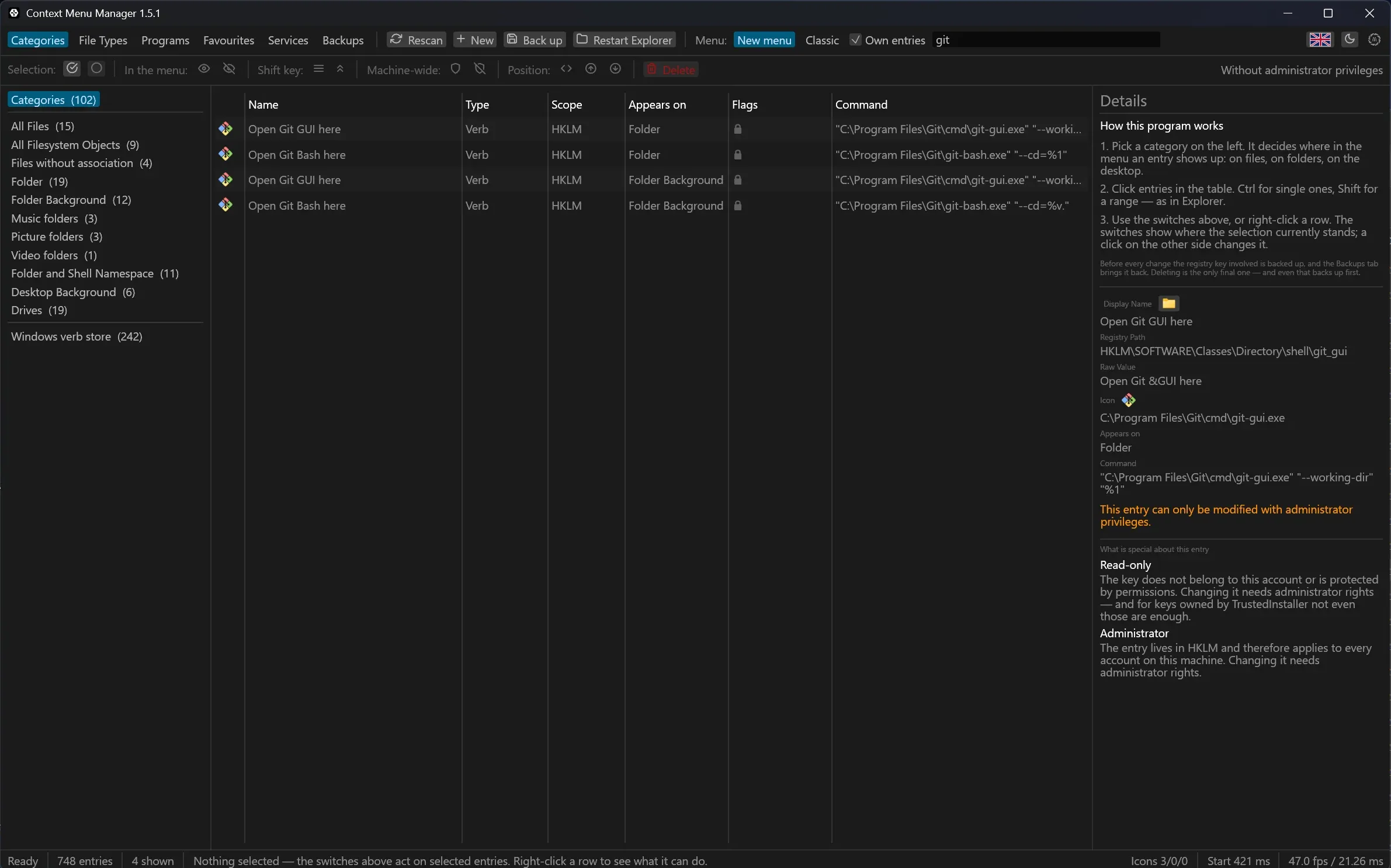
Opening the window in a given state
These switches open the window instead of printing anything.
| Switch | What opens |
|---|---|
--tab <name> | the window on categories, filetypes, programs, favourites, services or backups |
--search <text> | the window with the search box filled in |
--ext .png | the file types tab, that extension selected |
--service <id> | the services tab, that service selected and its tool list loaded. The id is the one in services.json |
--new <category> | the editor for a new entry of that category, filled in with an example. Nothing is written |
ctxmenu --tab services
ctxmenu --search 7-zip
ctxmenu --new directory
Diagnostic switches
| Switch | Effect |
|---|---|
--window 1600x1000 | opens the window at that size in pixels on the leftmost screen. The minimum is 900x600 |
--synthetic <n> | opens the window with n generated rows. --bench <frames> turns it into a measured run |
--theme-probe | flips the system theme once, reports whether the window followed, then restores it |
--smoke | opens the smoke test window |
--version | prints the version |
--help | prints the command and switch list |
Capturing the output
One trap here belongs to Windows and not to this program. The release build is
linked as a windowed program. The attribute is
#![cfg_attr(not(debug_assertions), windows_subsystem = "windows")] in
ctxmenu/src/main.rs, and it keeps a double-click from flashing a console. Two
things follow from it.
A windowed process starts with no standard handles at all. The program calls
AttachConsole(ATTACH_PARENT_PROCESS) before its first write, so a command
typed into a console does get its output. Started from Explorer the attach
fails, the program stays silent, and that is what the double-click case wants.
The shell also does not wait for a windowed process. ctxmenu scan --json > scan.json
therefore leaves the file empty, and it leaves no error behind to explain why.
Redirecting to a file needs one of these two
Wait for the process explicitly, or work in a debug build. The
windows_subsystem attribute applies to not(debug_assertions) only, so a
debug build keeps the console subsystem and redirects the way any console
program does. Console work that runs longer than a single command is easier
there.
Start-Process ctxmenu -ArgumentList 'scan','--json' -Wait -RedirectStandardOutput scan.jsoncargo run -- scan --json > scan.jsonLast updated