 ctxmenu
Working the list
The columns, the three sort clicks, what the search field reads, and the keys that move the selection.
The table in the middle holds one row per entry. A submenu shows its children indented underneath it, so a row is either an entry or one of its children. Selection, right-click and the arrow keys all reach a child the same way they reach its parent.
The columns
| Column | What it says |
|---|---|
| Icon | The icon Windows draws for the entry. No header text |
| Name | The display name, with ▸ after it when the entry opens a submenu |
| Type | Verb, COM Handler or Win11 verb |
| Scope | HKCU, HKLM or HKLM32, the hive the key sits in |
| Appears on | Where the entry shows up, in words |
| Flags | One symbol per state: the lock, the Shift sign, Hidden, Blocked |
| Command | The command line. For a COM handler its CLSID, for a Win11 verb the package |
The Appears on column says "All Files" rather than *, and ".zip" rather
than a path with SystemFileAssociations in the middle. * and Folder are
registry shorthand, and they say nothing to the person deciding whether to
delete a row. The real registry path sits in the tooltip. Hover the cell to
read it.
Sorting, and the third click
Clicking a column header sorts by it. A second click on the same header reverses the direction. A third puts the table back into the order the rows were collected in. The header of the active column carries an arrow, so you can tell which of the five columns the order comes from.
Flags and the icon column do not sort. A row of symbols has no order worth the click.
The collected order carries meaning in File types. It puts the entries belonging to the chosen extension in front of the ones that apply to every file. Sorting by name shuffles those two groups back together, and the third click is the way back.
The search field
The field above the table reads more than the name:
- the display name and the key name
- the registry path
- the command line
- for a COM handler, the CLSID and the server DLL
- for a Win11 verb, the package name, the full package name and the CLSID
It applies to the three tabs that show scanned entries: Categories, File types and Programs. It works even when nothing is selected in the tree on the left.
A submenu stays in the list when one of its children matches. Searching for the child and being told there is no such entry would be wrong, because the menu does offer it.
The Services tab brings a search of its own, above the tool list. Favourites and Backups are short enough to be shown whole.
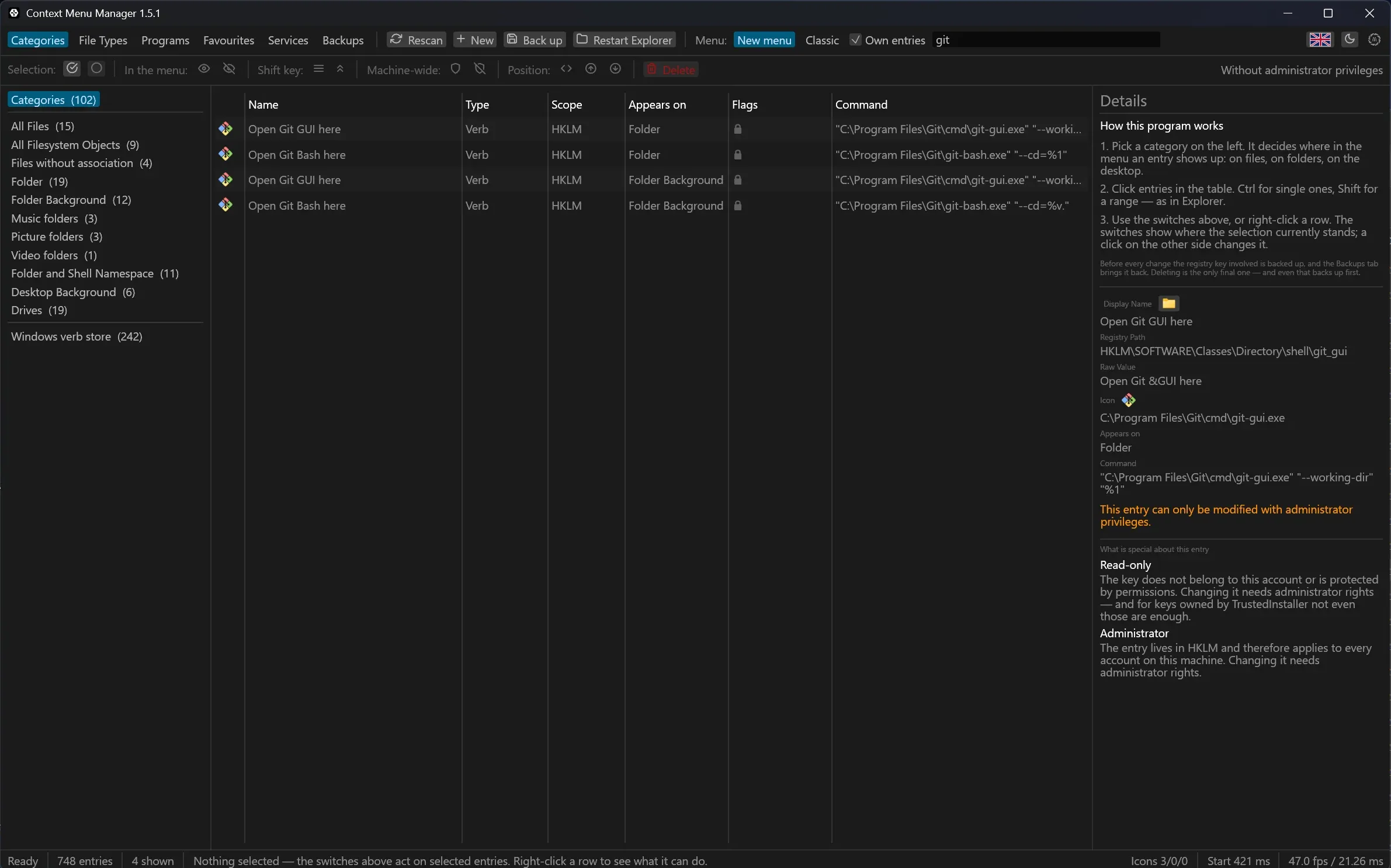
Typing git leaves one entry standing, and the right-hand side says where it
lives: Directory\Background\shell\git_shell, under HKCU, with %V rather
than %1 because it hangs on a folder background.
The detail pane
Select a row and the pane on the right fills. It carries, top to bottom:
- the display name, with a folder button beside it that opens Explorer with the program itself picked out
- Registry Path and Raw Value
- Icon, Appears on and Position
- Command, or CLSID and Server DLL for a COM handler, or Package for a Win11 verb
- the children, when the entry is a submenu
- every flag that the table had room for only as a symbol, spelled out in words together with the reason it holds
Every field can be selected and copied, so a registry path goes straight into regedit. When the program behind an entry is no longer installed, the pane says so in a red sentence. The table has room for the colour alone.
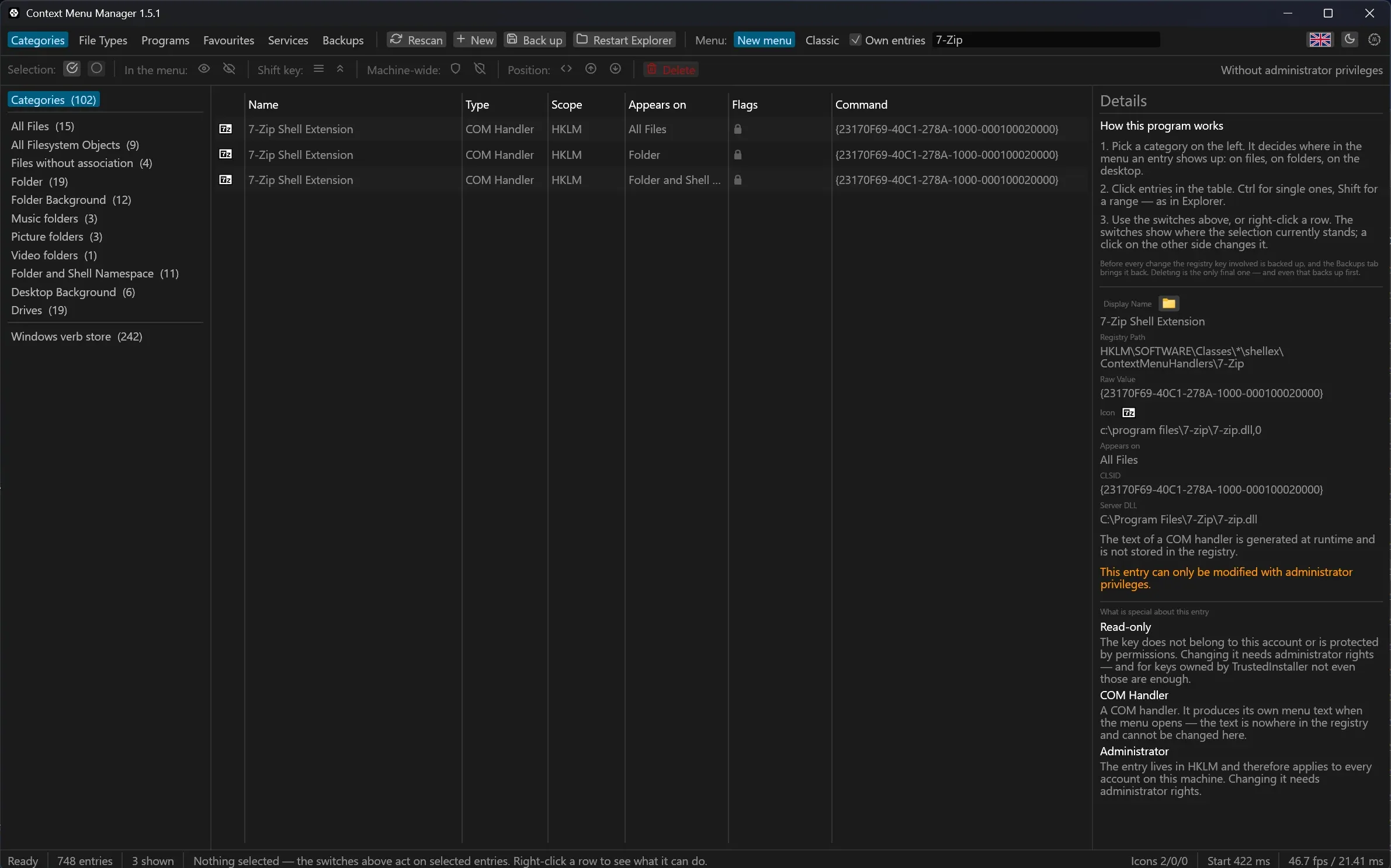
One COM handler, opened: registry path, CLSID, the DLL behind it, and three
short reasons why nothing here can be edited. The key belongs to HKLM, the
text is produced at runtime, and the entry is read-only for this account.
Right-click
A right-click offers exactly the actions that would change something about the item clicked. With a multi-selection, the ones that only make sense for a single entry drop out. In the empty area below the last row it offers New.
Right-clicking a row that is not part of the selection makes that row the selection first. Otherwise the menu would list what one row can do and then do it to twenty others.
The trees on the left answer a right-click too, each with the target it stands
for. A category row creates in that category. A row in the file type tree
creates for that extension alone, which is the shortest way to "this entry, but
only for .png".
The keyboard
| Key | What it does |
|---|---|
| Arrow up, arrow down | Moves the cursor one row, submenu children included |
| Home, End | Jumps to the first or the last row |
| Shift and an arrow | Grows the selection |
| Ctrl+A | Selects every visible row |
| Double click | Opens the entry in the form, filled in from the registry and locked |
The keys reach the table only while no text field holds the keyboard. Inside the search box, Home, End and the arrows stay editing keys, and Ctrl+A goes on meaning "select this text".
Last updated