 ctxmenu
The Windows 11 menu
Both halves of it, and what belongs to Explorer rather than to you.
Windows 11 shows a short menu on first right-click and puts everything else behind Show more options. Those are two different menus with two different mechanisms, and ctxmenu manages both.
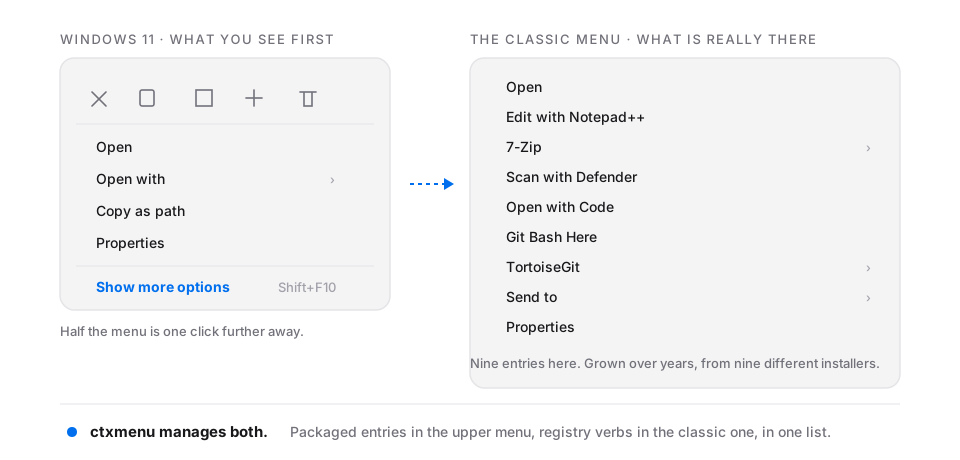
The upper menu
Its entries do not come from …\shell registry keys. Each one is an
IExplorerCommand handler that a packaged app declares in its
AppxManifest.xml, and the menu is assembled from those declarations.
ctxmenu reads them the way the shell does: the packages that registered COM classes, then each package's manifest, then the verbs and item types in it. They appear in the same views as classic entries, marked so you can tell them apart.
Hiding one is a different lever than for a classic entry. There is no
LegacyDisable; instead the handler's CLSID goes on the per-user blocked list.
That needs no administrator rights and no Explorer restart — the next menu you
open is already without it.
Your own entries up there
The executable carries an IExplorerCommand handler and a sparse package
inside itself. Turning the feature on writes them beside your settings and
registers the package, and from then on your own entries — favourites and
service tools included — appear in the upper menu too.
Registration needs an elevated context once. After that, creating and removing entries needs no further package work: the handler reads the same file the window writes.
What belongs to Explorer
Two things in the upper menu are not yours to arrange.
The order. Where a packaged entry sits is Windows' decision. Neither the manifest nor the registry moves it, so sorting stays a capability of the classic menu.
The commands Explorer builds in itself. "Send to my phone" and its kin carry no registration at all: no package manifest, no COM registration, no verb. Measured on Windows 11 build 26200 — there is nothing to list and nothing to block. Those switches live in Windows Settings.
Switching the upper menu off
If you would rather have the classic menu on first click, one key does it:
an empty InprocServer32 under the CLSID Explorer loads the new menu from. A
COM server pointing at nothing does not load, so Explorer falls back. ctxmenu
offers this as a switch in the top bar, and offers it only on builds that have
the new menu at all.
Last updated