 ctxmenu
Getting started
Download, first run, and what the six tabs are for.
Download and run
There is no installer. Download ctxmenu.exe from the
latest release
and start it.
ctxmenu.exeWithout arguments the window opens. Entirely without administrator rights: they are requested once a change actually needs them, and then only for that one step.
Check what you downloaded
Every release carries checksums.txt and a signature over it. The signature
is made with a key that does not live in the repository, so whoever can
publish a release still cannot sign one. The release notes give the two
OpenSSL commands that verify it by hand.
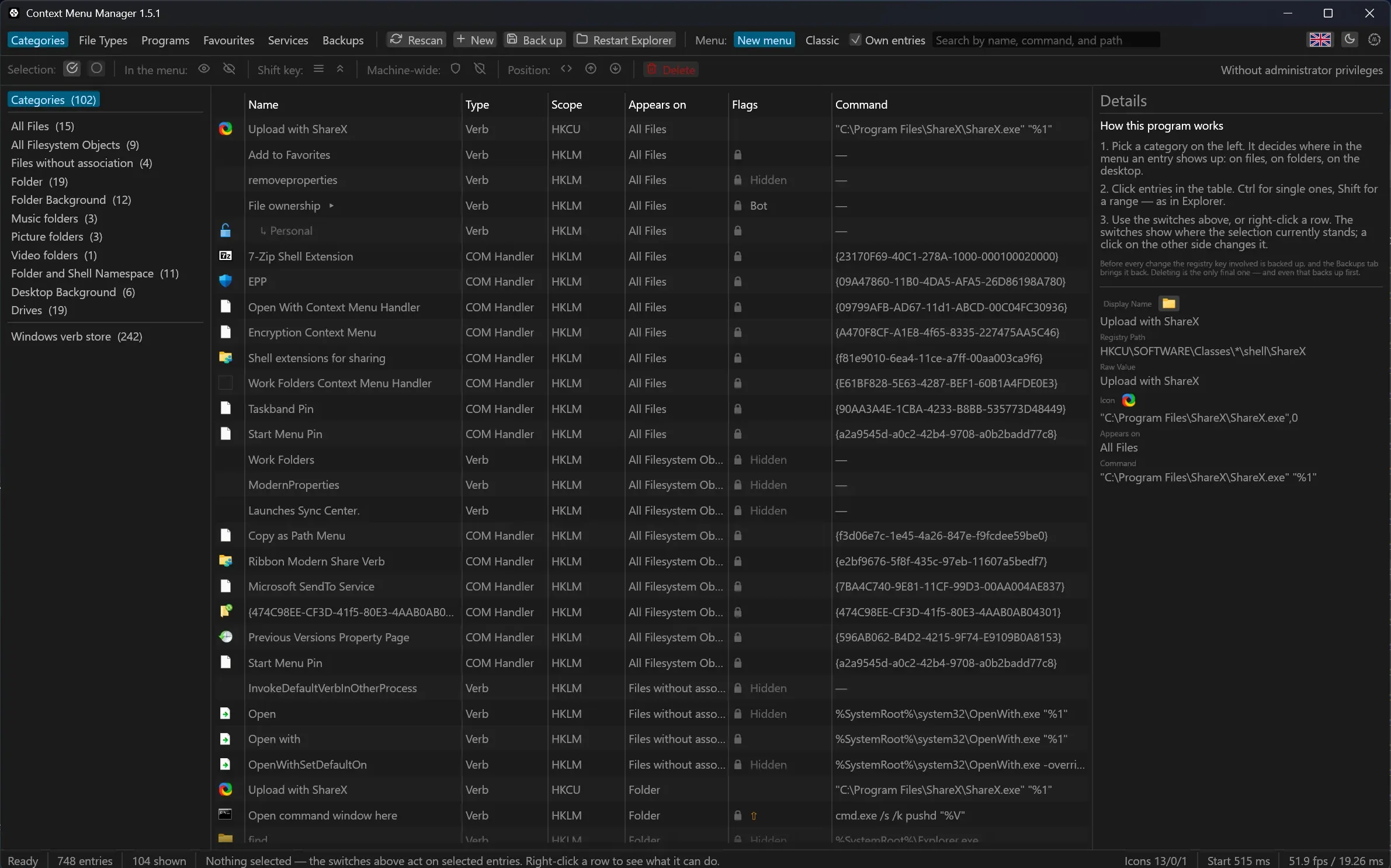
The six tabs
| Tab | What it holds |
|---|---|
| Categories | The base categories, from "all files" to "drives" |
| File types | One extension at a time, with its full resolution chain |
| Programs | Every entry grouped by the program that registered it |
| Favourites | Your own toolbox of programs and web tools |
| Services | Tools read out of an OpenAPI description |
| Backups | Every backup taken, and the way back |
A first round
Look before you change anything
Open Categories and let the scan finish. The number in the header is what your machine actually carries. Sort by the Program column to see who has been busy.
Find the ones you never use
Programs groups every entry by the program behind it. An entry pointing at a program that no longer exists shows in red — those are the safest to remove, because nothing is behind them any more.
Hide rather than delete
Select a row and press Hide in the action bar. That writes LegacyDisable,
which Explorer honours immediately and which you can undo with the same
button. Nothing is gone.
Delete only what you are sure about
Delete sits behind a separator and is spelled out rather than abbreviated. It takes a backup first, and it cannot run without one.
Last updated